Audio generation
Audio on Morphic enables you generate audio (music, sound effects, and speech) from scratch using only a prompt.
Here’s a quick tutorial on how to use Audio on Morphic:
You can start with a video or create audio tracks independently and assemble everything on the timeline.
If you’re starting with a video
- Upload or generate your video on the Canvas
- Select the video and click 'Add audio track' from the toolbar
- Choose the type of audio you want to add: speech, sound effects, or music
- Describe the kind of audio generation you want, then click the blue button in the prompt bar
- Generate as many audio generations as you want and bring them together in the timeline along with your video
If you're creating audio first
- Go to the Canvas on Morphic
- Go to the prompt bar at the bottom of your screen
- Switch from 'Image' to 'Audio'
- You may further select between three audio options: speech, music, or sound effects
- Describe the kind of audio generation you want, then click the blue button in the prompt bar
- Generate as many audio generations as you want and bring them together in the timeline along with your video
Working with audio
Speech
- Type or paste your script
- Choose a character voice and language
- Click the blue button in the prompt bar
On Enterprise plans, voices from your organization's own ElevenLabs account are under 'My voices' in the voice picker. See Your ElevenLabs voices.
Music
- Pick a model and a duration. The duration list shows the range the selected model allows, up to 5 minutes on some models
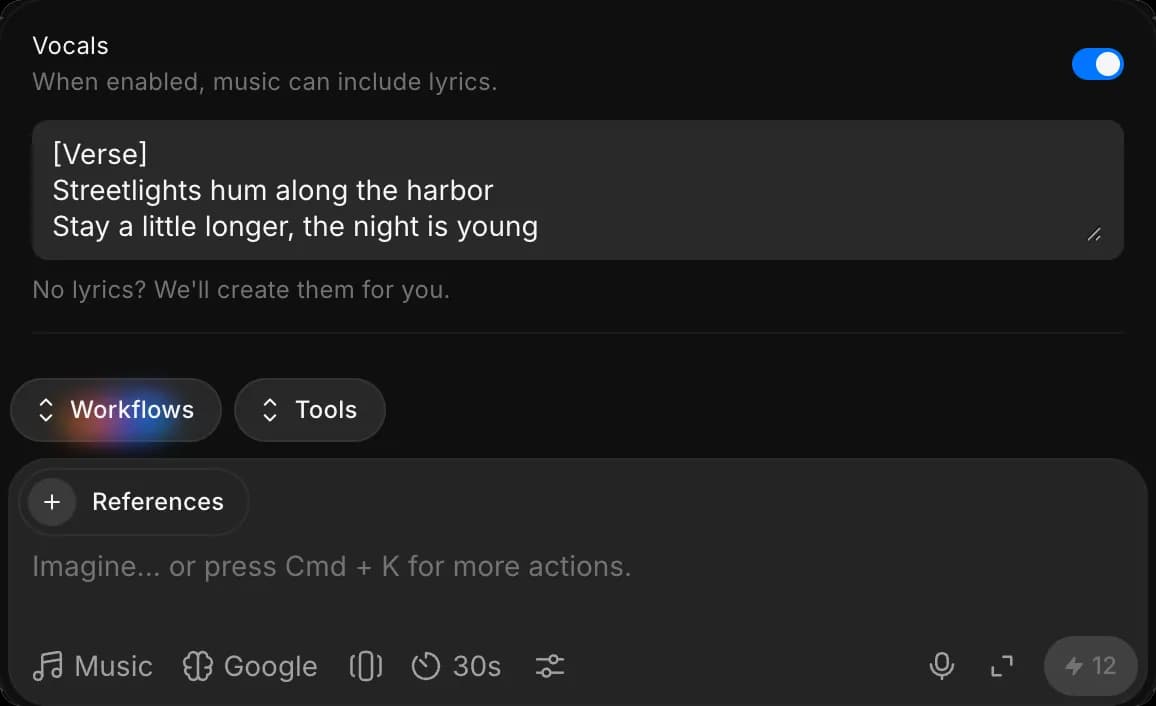
- (Optional) For a song, click the Preferences icon and turn on 'Vocals'. Paste your lyrics in the box, or leave it empty and the model writes them
- Describe the mood, genre, or style. Examples: peaceful nature score, ambient forest track, emotional piano
- Click the blue button in the prompt bar
Describe the singing voice in words, such as "warm female vocal" or "gravelly baritone", rather than naming a real singer.
Sound effects
- Describe the sound effect (environment, action, atmosphere). Examples: birds chirping, wind in trees, soft rainfall ambience
- Pick a duration. The default is 5 seconds
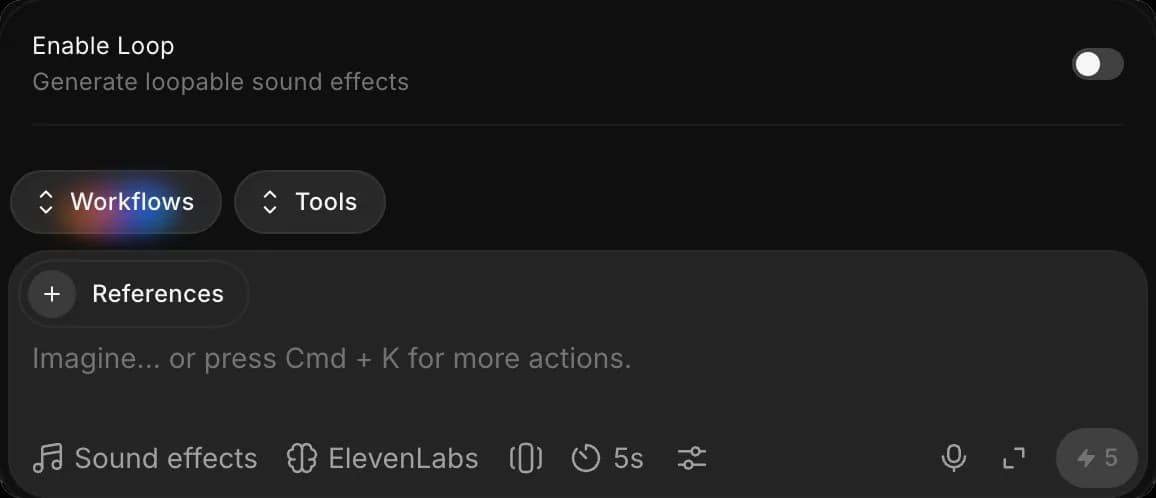
- (Optional) With the ElevenLabs model, click the Preferences icon and turn on 'Enable Loop' for a sound that repeats without a seam, such as rain or room tone
- Click the blue button in the prompt bar
To score a video you already have, with effects timed to the picture, use Sound effects for video.
Timeline editing
- Split any audio layer using the scissor icon to isolate parts you want to keep or remove
- Drag layers to reposition them on the timeline so each sound aligns with the right moment
- Drag the edges to adjust timing and make the audio start or end exactly where it fits
- Adjust all audio layers until they match your scene, ensuring each element supports the mood, timing, and flow of the video.
- Preview the full scene to ensure all audio layers blend seamlessly together
That’s how you use the Audio feature on Morphic. It is ideal for adding speech, music, and sound effects to scenes across films, ads, interactive media, social content, or other creative projects.
If you have any trouble or have any questions, feel free to reach out. We're happy to help. Write to us at support@morphic.com.