Artifacts
Have Copilot turn one chat's images, clips, audio and documents into a page or slide deck you can review, answer and share, with copy-ready prompts.
Artifacts on Morphic are pages Copilot builds from one chat's images, clips, voice, music, sound effects and documents. Describe the page or slide deck you want and it opens next to the chat, ready to review, answer or share.
Here's a quick tutorial on how to use Artifacts on Morphic:
Use cases
- Review sheets: every asset with its prompt
- Takes side by side, to pick the best one
- Character reference and continuity checks
- Approval pages: pick takes, music and sound, and flag what needs work
- Storyboards, and a script beside its frames
- Story maps and workflow diagrams
- Shot lists for an editor, in cut order
- Client briefs and slide decks
Create an artifact
- Open a Copilot chat that has the work
- Describe the page, like 'Put these shots on a page: each image with its prompt below it, in a grid'
- Click the card marked 'Artifact' to open the page in the side pane
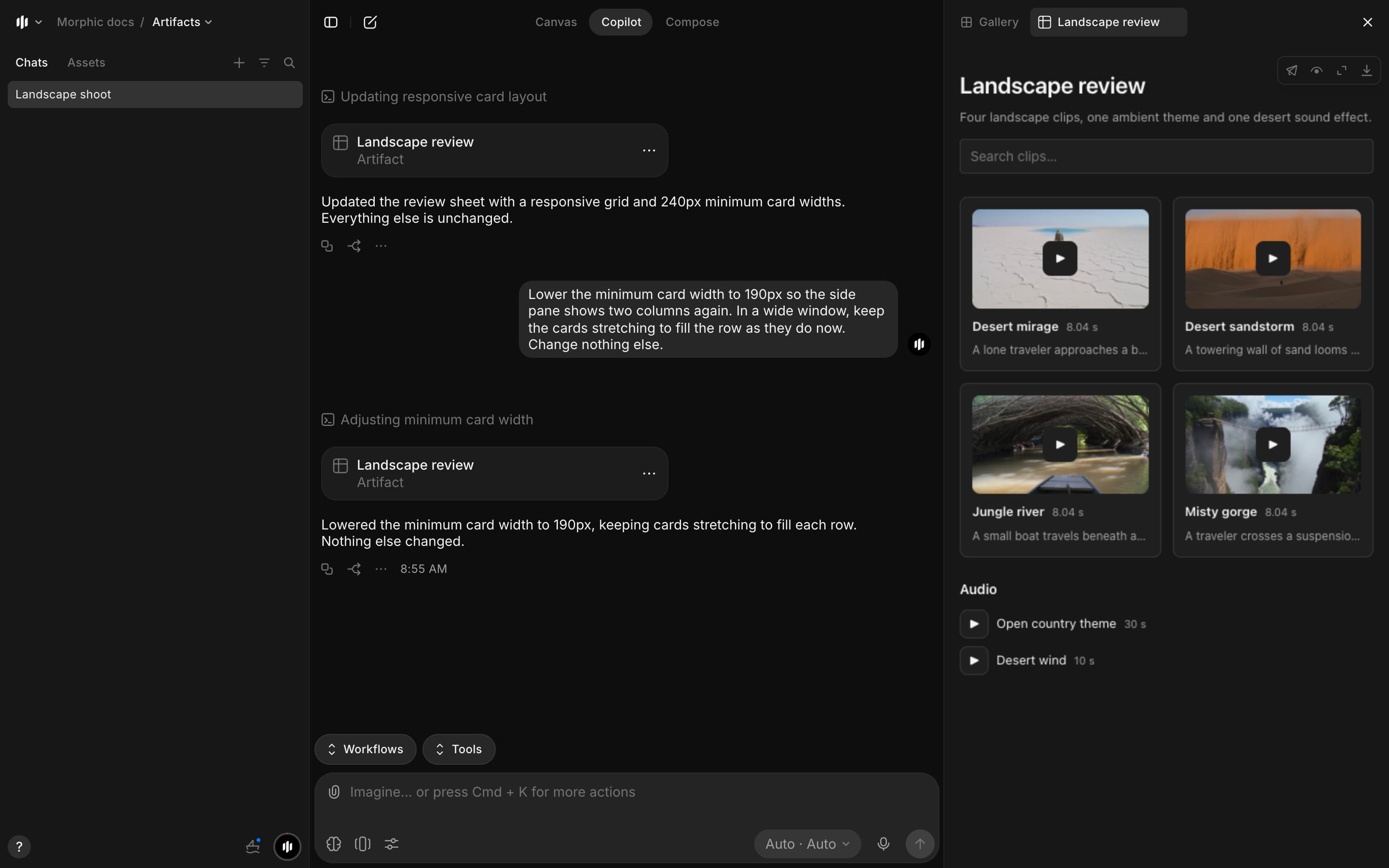
- Copilot uses that chat's files and text, and your names for scenes, shots and characters
- A script, treatment or notes comes back as a document
View an artifact
The artifact opens in its own side pane tab, next to 'Gallery'. On the page:
- Images: click one to see it full size
- Clips: each shows its first frame and loads when you press play
- Voice, music and sound effects
- Long lists: 100 items at a time, with a button to show more
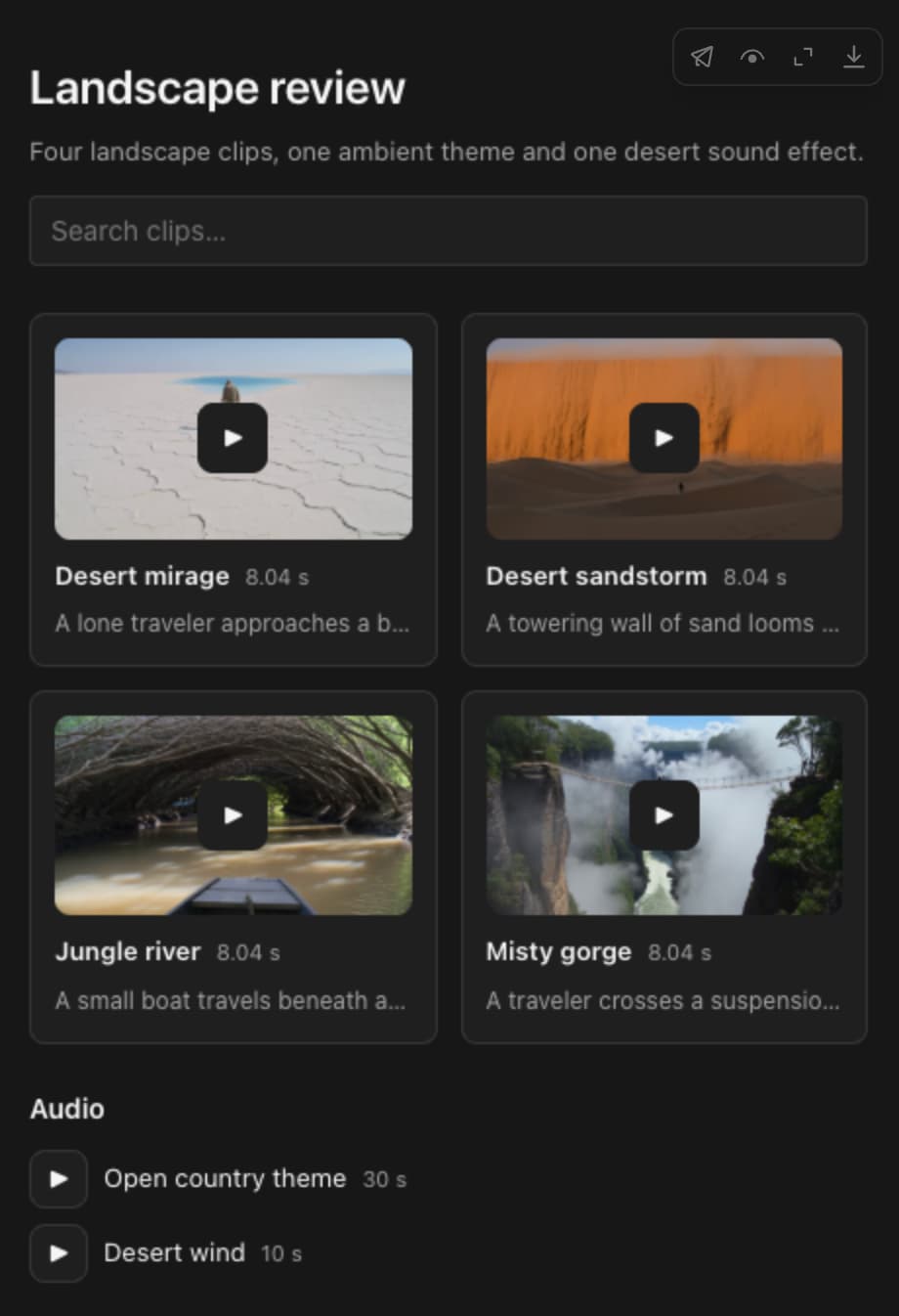
The icons at its top right:

| Icon | What it does |
|---|---|
| Share | Copies a link, and turns external sharing on or off |
| Show raw | Shows the page's source |
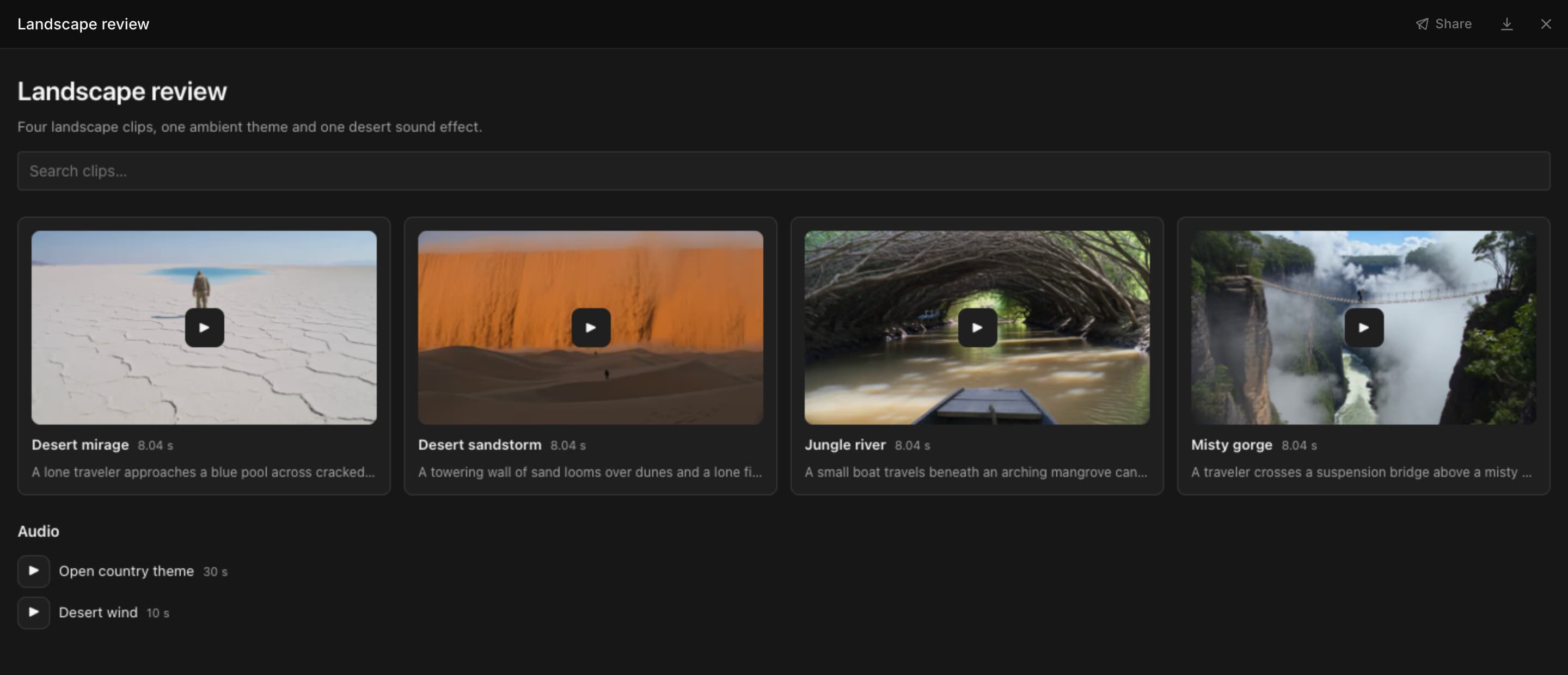
| Full screen | Opens the page over the whole window |
| Download | Saves the page as an HTML file. Its media loads from Morphic, so it needs an internet connection |
In full screen, 'Share' and download sit at the top. Press Esc to return to the side pane.
- List a chat's artifacts: open 'Gallery', click the filter icon, then 'Type' > 'Artifacts'
- The '...' menu on an artifact card holds 'Add to favorites', 'Attach as reference' and 'Download'
Describe the layout
The more you describe, the closer the page fits. Say:
- How items are arranged: a grid, rows, side by side, in cut order
- What shows under each item: its prompt, length, shot number or a status badge
- Whether you want search or filters
- What to leave out

Make a review sheet of this chat: cards in a three-column grid, search on top, each prompt under its itemMake an approval page: shots in a grid with Approve and Needs work buttons, music and sound as rows to pick fromStyle a page
Add any of these to a prompt:
| To get | Add |
|---|---|
| Status | 'with a status badge on each' |
| Scores | 'score each from 0 to 100 with a bar' |
| A highlight | 'outline the best one' |
| Colors | 'show colors as swatches with hex codes' |
| Totals | 'put the totals at the top' |
| Order | 'one row per shot' or 'in cut order' |
| Search | 'add a search box and a filter by status' |
| A clear diagram | 'label every link and add a legend' or 'add a thumbnail at each step' |
| No new images | 'don't generate any images' |
Tips:
- Build several pages at once by numbering them: 'Make three separate artifacts: 1) a shot QC list, 2) a contact sheet, 3) a color script.'
- Treat Copilot's scores and selects as a starting point
Ready-made prompts are in Prompt templates.
Revise an artifact
- Prompt for the change in the same chat, like 'add a voice line column' or 'only the rejected shots'
- Copilot saves it as the next version of the same artifact, with its own card
- If the pane shows 'Newer version available', click 'Open latest'

Pages you can answer
An approval page or a QC pass sends your picks back to the chat.
- Pick on the page: choose a take, mark a shot approved or needs work, or type a note
- The bar under the page counts your picks, like '3 answers'
- Click 'Add to message'. The bar reads 'Added to your message' and your picks go into the message box
- (Optional) Add a line, like 'Regenerate the shots marked needs work'
- Send the message
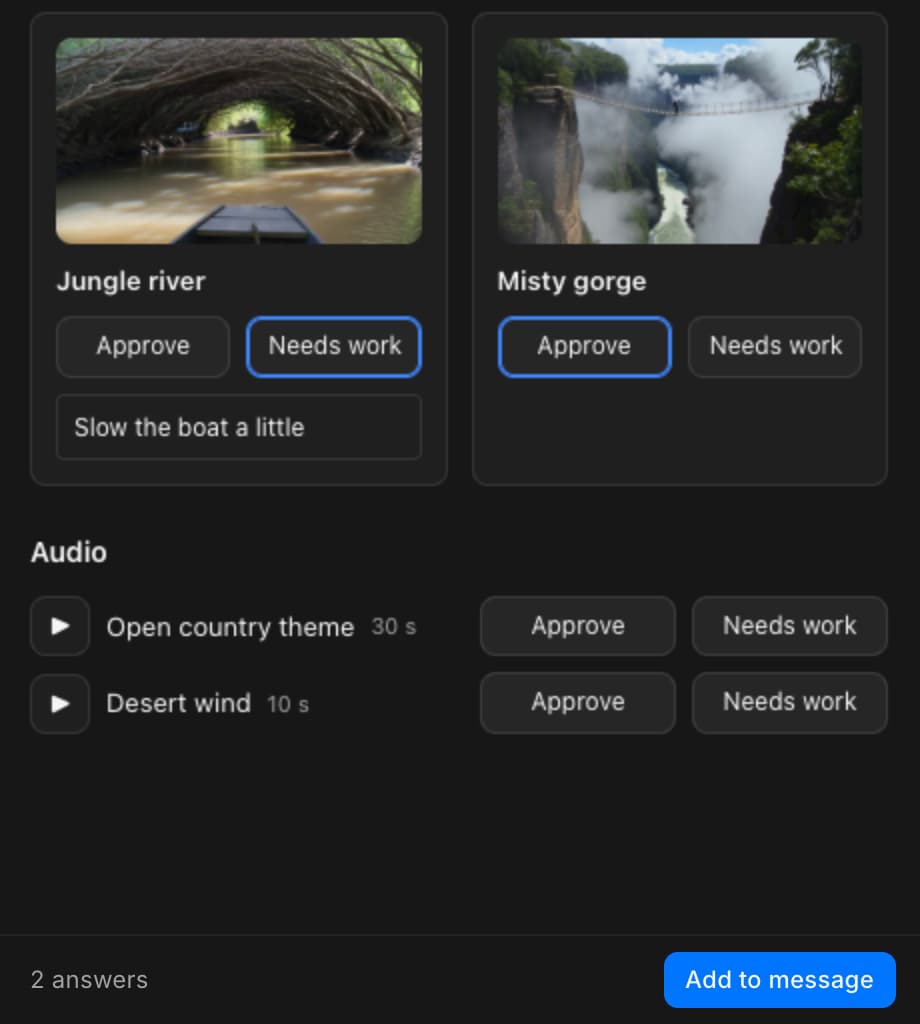
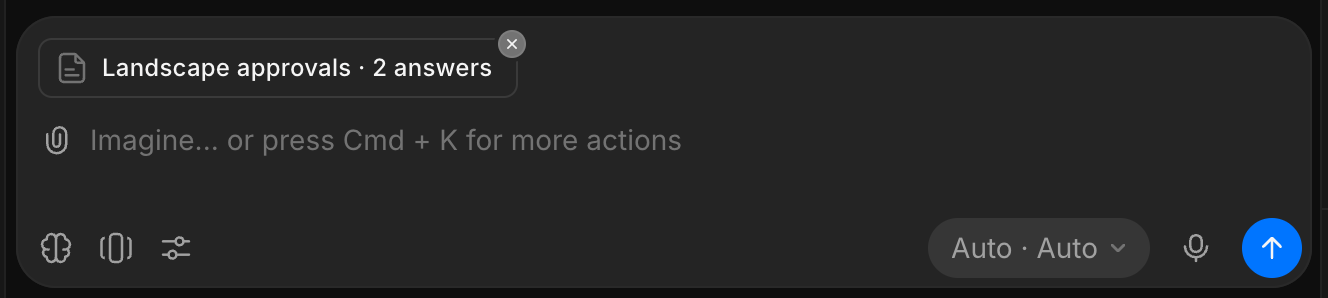
Copilot acts on each answer and leaves approved or blank items as they are. To show the results on the page, prompt for it, like 'Update the page with the new takes'.
- Only the items you pick are sent, and your picks stay if you close the page and come back in the same browser
- In full screen, 'Add to message' closes the page and takes you to the message box
Share an artifact
- Click the share icon at the top right of the artifact, or 'Share' in full screen
- Pick a link:
- 'Copy link', for people who can open this file. It opens the chat with the artifact in the side pane
- 'Copy external link', for anyone, with no Morphic account. Turn on 'External sharing' first
- The row reads 'Copied!' when the link is copied
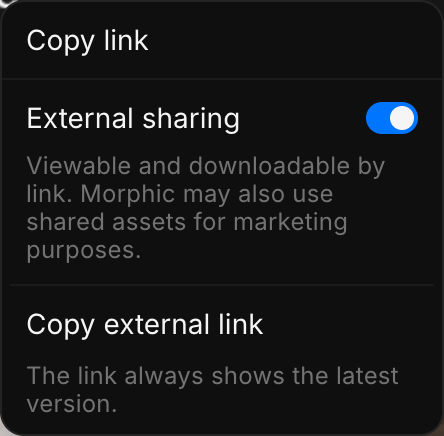
- Both links open the latest version, even when copied from an older one
- The external link shows only the page, not the chat or your other files
- Turn off 'External sharing' to stop sharing
- A page runs in a sealed frame: it cannot read your account or other files, or reach the internet
- Only Copilot makes artifacts, so an HTML file cannot be uploaded as one
Morphic may use shared assets for marketing purposes. Leave 'External sharing' off for work you do not want shown.
Slide decks
Prompt for slides, a deck or a presentation, like a pitch deck or a season recap, and Copilot builds a slide deck.
- Describe the deck, like 'Make a 10-slide pitch deck for this series, with the strongest images as key art'
- Click a slide in the strip under the deck to jump to it
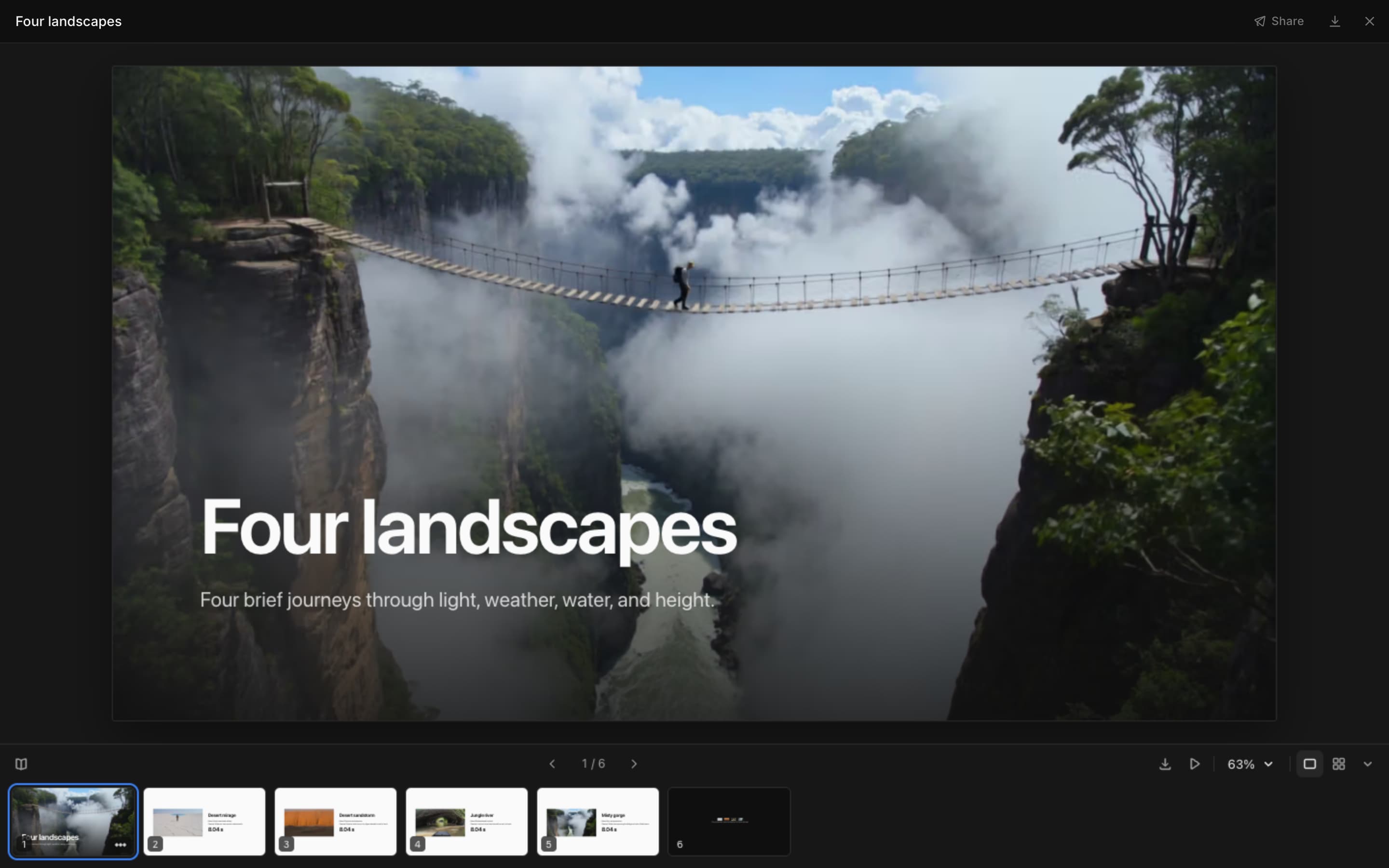
The bar under the slide:
| Control | What it does |
|---|---|
| Speaker notes | Shows the current slide's notes |
| Previous slide, Next slide | Moves one slide back or forward |
| Save as PDF | Opens the print dialog. Choose 'Save as PDF' as the destination |
| Present | Shows the deck full screen. Click or press → to go on, Esc to stop |
| Zoom | Zooms in or out, fits the slide, or sets 25% to 200% |
| Slide view, Grid view | One slide at a time, or every slide grouped by section |
| Hide slides | Hides the strip of slides |
Click '...' on a slide in the strip, or right-click it, for:
- 'Present from here'
- 'Copy slide text'
- 'Ask about this slide', which adds the slide to your next message
Keyboard shortcuts:
| Keys | What they do |
|---|---|
| → ↓ Space Page Down | Next slide |
| ← ↑ Page Up | Previous slide |
| Home, End | First or last slide |
| Cmd/Ctrl + =, Cmd/Ctrl + - | Zoom in, zoom out |
| Cmd/Ctrl + 0 | Fit the slide |
| Esc | Stop presenting |
For a better deck:
- Give the number of slides and their order, like 'title, logline, characters, sample shots, the ask'
- Add 'speaker notes on each slide' for something to say when you present
- Slides are dark with Morphic colors. Add 'light slides' for tables and dense pages
- Longer decks are split into sections, which head the grid view
- Change one slide by number, like 'make slide 4 a comparison table'
Artifact size
- One artifact holds up to 1 MB and 2,000 files
- For a bigger project, prompt for one artifact per episode or scene, like 'Make one review sheet per episode'
Prompt templates
- Click the copy icon on a prompt
- Paste it into a chat that has the work
- If it ends with a label and a colon, paste your details after it
- Send it
Review and QC
Look over Copilot's first-pass check yourself before you approve the sheet.
Make a review sheet of all the images and videos in this chat, in prompt order: the label, the image or clip, and its prompt underneath, with a status badge on each: approved, needs work or rejected.Check each item on the review sheet against its prompt. Mark it approved, or needs work if anything is off (wrong object, angle or medium, text in the frame, or something that looks like a real brand), with a one-line reason.Make a shot QC list of every video in this chat: shot number, thumbnail, short description, length, aspect ratio and a status set to pending, with the totals at the top.Put every image of this character beside their reference image, in story order, and flag any shot where the face, hair or costume does not match. Character:Make a page of only the shots marked needs work, one section per episode, each with its image, prompt and reason.Lay out the shot list against the timestamps in the attached transcript or script, one row per shot, and flag any stretch with no shot.Compare and select
Show these takes side by side. Score each from 0 to 100 on motion, likeness and lighting with a bar for each, add a one-line note under each, and outline the best one. Takes:Put every frame and clip in this chat on a contact sheet. Outline the four strongest as selects and list them below with a one-line reason for each.Show the results from each model in this chat side by side, with the model name and settings under each.Plan a sequence
Make a storyboard from the images and clips in this chat, in the best order. Each panel: shot number, frame, shot size, camera move, length and a one-line action. Target length:Make a color script: one key frame per shot, its main color as a swatch with its hex code, and a gradient strip across the whole set.Draw a diagram of how these shots were made, from the brief to the finished files, with a thumbnail at each step.Develop a story
Paste your premise, cast and locations into the chat first.
Before I generate anything, put every character and location reference sheet in this chat on one page and flag anything that conflicts: faces, costumes, colors or props.Make a character bible: each character's role, age, look notes, want and secret, a color palette as swatches with hex codes, and the continuity rules every shot must follow. Use any reference images in this chat.Draw a character web showing who owes, loves or works with whom, with every link labelled and a legend.Make a location bible for each location: time of day, mood, the scenes set there, key props, sound and a color palette.Make a beat sheet: one column per episode with its main beats, and mark each cliffhanger.Make a call sheet with call time, sunset, weather and wrap at the top, then a table of scenes with set, cast, pages and start time. Shoot date, location and times:Share the work
Make a pitch one-pager with the strongest image in this chat as key art, then the logline, format, audience, tone and a one-line hook for each episode.Make a pitch deck from this chat's work: a title slide with the strongest image as key art, then the logline, the world, the main characters, sample shots, format and audience, and a closing ask. Add speaker notes to each slide.Make a slide deck that recaps this season: one section per episode with its key frame, the main beats and what changed for each character.Put every approved final in this chat on one page for the client: each with its title and format, grouped by deliverable.Make an editor handoff sheet: one row per shot in cut order, with the script line, the final frame and the file name.Lay out the ad variants as a grid: one hook per row and one format per column (9:16, 1:1, 16:9).Make an approval page: each piece as the old version beside the new one, a one-line note on what changed, and a status badge: approved, needs changes or pending.Make a portfolio page from the best work in this chat: a large hero piece, then a grid with a title and one line for each, and my name and contact at the bottom. Name and contact:Track and organize
Make a progress page from the status list below: one row per episode with shots done, in QC and needing a redo, a progress bar, and the open issues. Status list:Make a localization grid from the list below: one row per episode and one column per language, each cell marked done, in progress or not started. List:Check every image and clip in this chat against our brand rules and mark each one pass or needs work, with a one-line reason. Brand rules:Make a content calendar from the plan below: one row per day with the date, channel, asset and caption. Plan:Make a catalog of every image and video in this file, newest first, with a thumbnail, a name and a search box.Make a searchable registry of every character and location reference in this file: the image, the name and what it is used for.List everything this chat has made, in order: a thumbnail, what it is, the model used and the step it came from.Show each prompt in this chat with what it made, grouped by scene.Make a guide to how we made this: one step per row with what happens, the model or setting used, and the real output from this chat.Beyond production
Write the prompt in the language you want the page in.
Make a lookbook from the images in this chat: a large cover image, then a grid grouped by mood, with a short caption for each.Make a report on the videos in this chat: a thumbnail, length and a short summary of each, with notes on what to fix.Make a set of flash cards from this list, with the word on the front and the meaning on the back, and a button to flip each card. List:Make a simple calculator page from the numbers below, with inputs I can change and totals that update. Numbers:Make a simple clicker game using the images in this chat, with a score counter and a reset button.That's how artifacts work on Morphic. Use one when a chat has more work than you can scroll through, when you need someone's picks, or to show the work to others.
If you have any trouble or have any questions, feel free to reach out. We're happy to help. Write to us at support@morphic.com.