Animate product photos
Animate your product photos into short videos for your online store, ads and social posts. Start from your own photo or generate one, then add a camera move and atmosphere.
Animate your product photos into short videos for your online store, ads and social posts, with no video shoot. Start from a photo you already have, or generate one from a short description, then bring it to life with a camera move, light and atmosphere. Everything runs from the prompt bar on the Canvas.
Create or upload a product photo
Already have a product photo? Drag it onto the Canvas and go to the next section. To generate one:
- In the prompt bar, choose Image, then pick an image model. We used Krea 2 Large (Krea › Krea 2 Large) for its sharp, photographic detail; any image model works.
- Open the settings, set Format to the shape you want the video in (we used 9:16 for a vertical video) and Variations to 4.
- Paste the prompt and click the blue button.
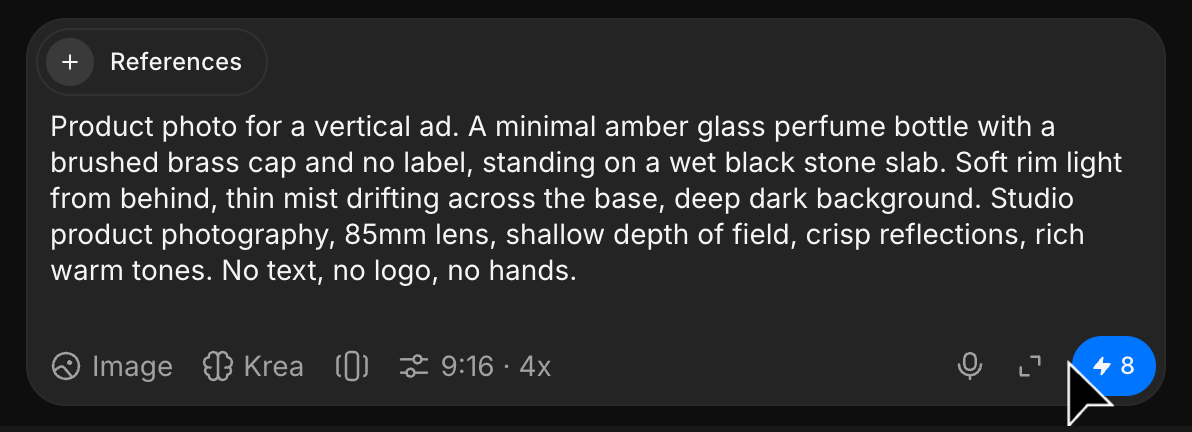
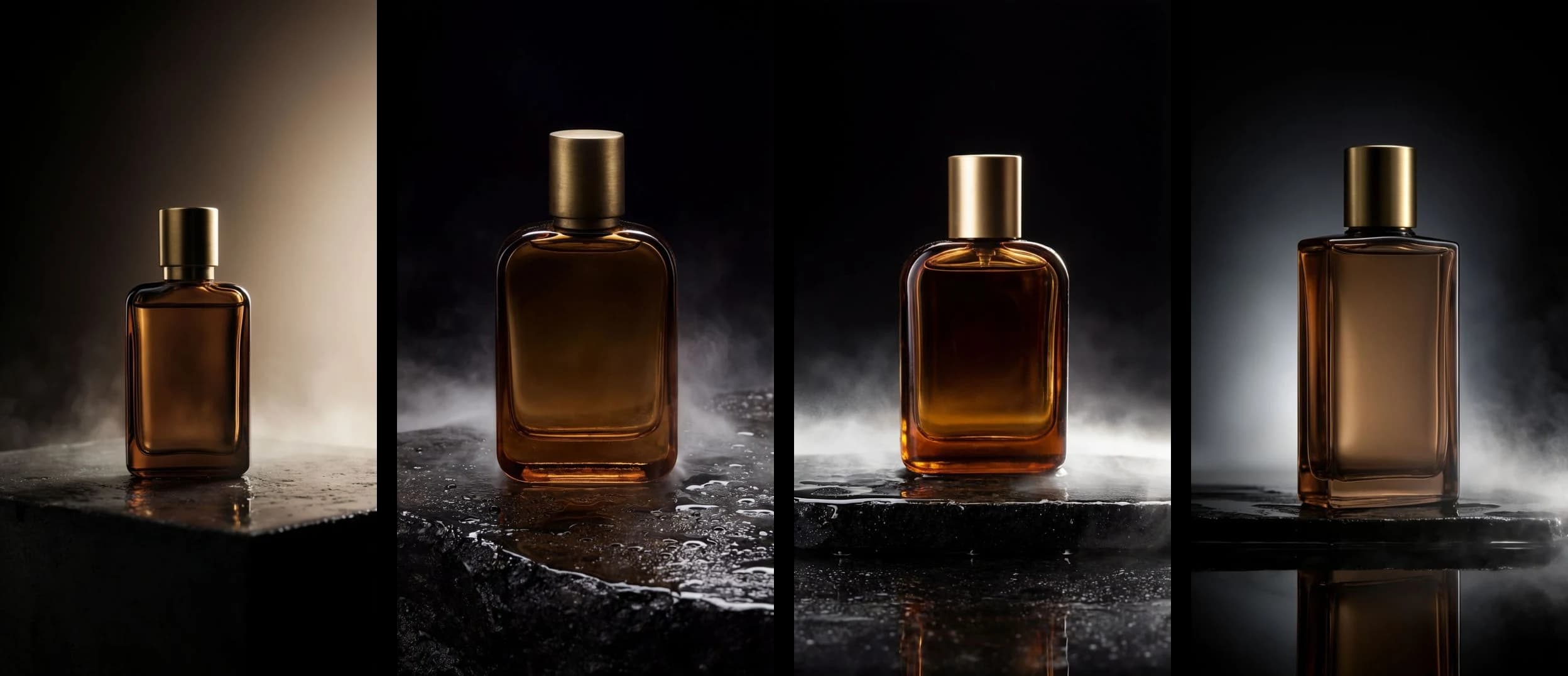
Product photo for a vertical ad. A minimal amber glass perfume bottle with a brushed brass cap and no label, standing on a wet black stone slab. Soft rim light from behind, thin mist drifting across the base, deep dark background. Studio product photography, 85mm lens, shallow depth of field, crisp reflections, rich warm tones. No text, no logo, no hands.You get four versions on the Canvas. Pick the one with the cleanest shape and light; it becomes the first frame of the clip.
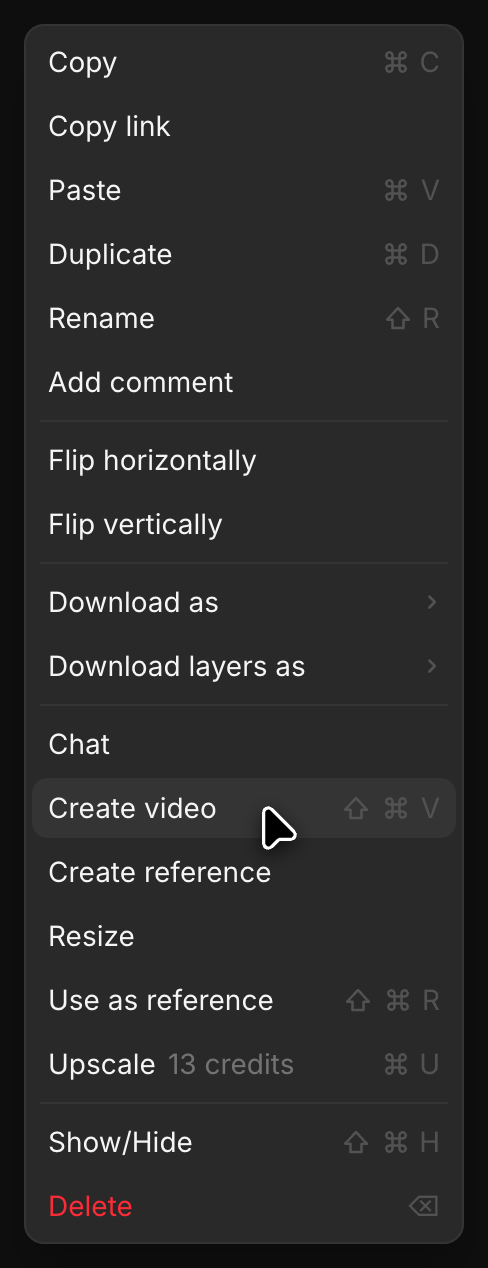
Animate the product photo
- Right-click your photo on the Canvas and choose Create video. The prompt bar switches to Video with your photo attached.
- Pick a video model. We used Kling 3.0 (Kling › Kling 3.0) for its cinematic, fluid motion; any video model that starts from an image works.
- Open the settings and set Resolution to FHD, Audio to On and Duration to 5s, or the closest your model offers.
- Paste the prompt and click the blue button.
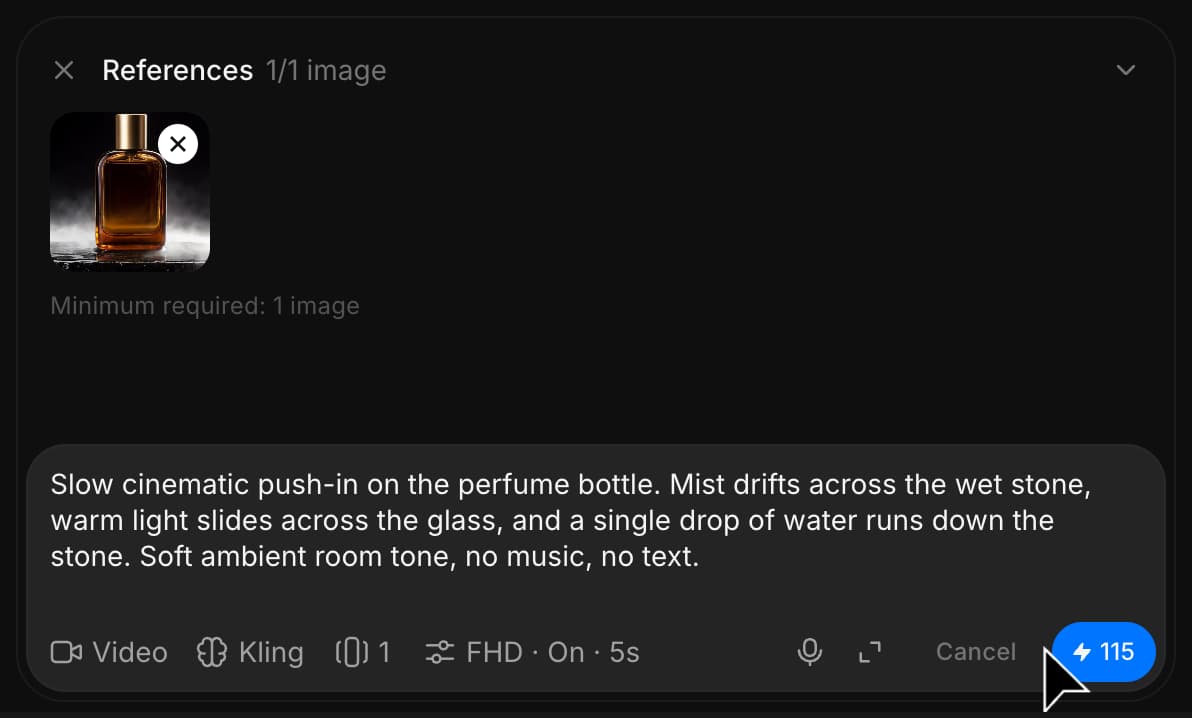
Slow cinematic push-in on the perfume bottle. Mist drifts across the wet stone, warm light slides across the glass, and a single drop of water runs down the stone. Soft ambient room tone, no music, no text.The video appears on the Canvas next to your photo.
Tips
- Describe one camera move and one or two small motions. A short product video reads best with a single slow move.
- Write "no text" and "no logo" in both prompts, so nothing invented appears on the product.
- For a square or landscape video, set the Format before you generate the photo; the video keeps the photo's shape.
- For formats that work for small brands, such as reveals, spins and lifestyle scenes, see product video ideas.
If you have any trouble or have any questions, feel free to reach out. We're happy to help. Write to us at support@morphic.com.