Inpainting
Effortlessly add, remove, or refine specific characters and objects within your frame using a single prompt.
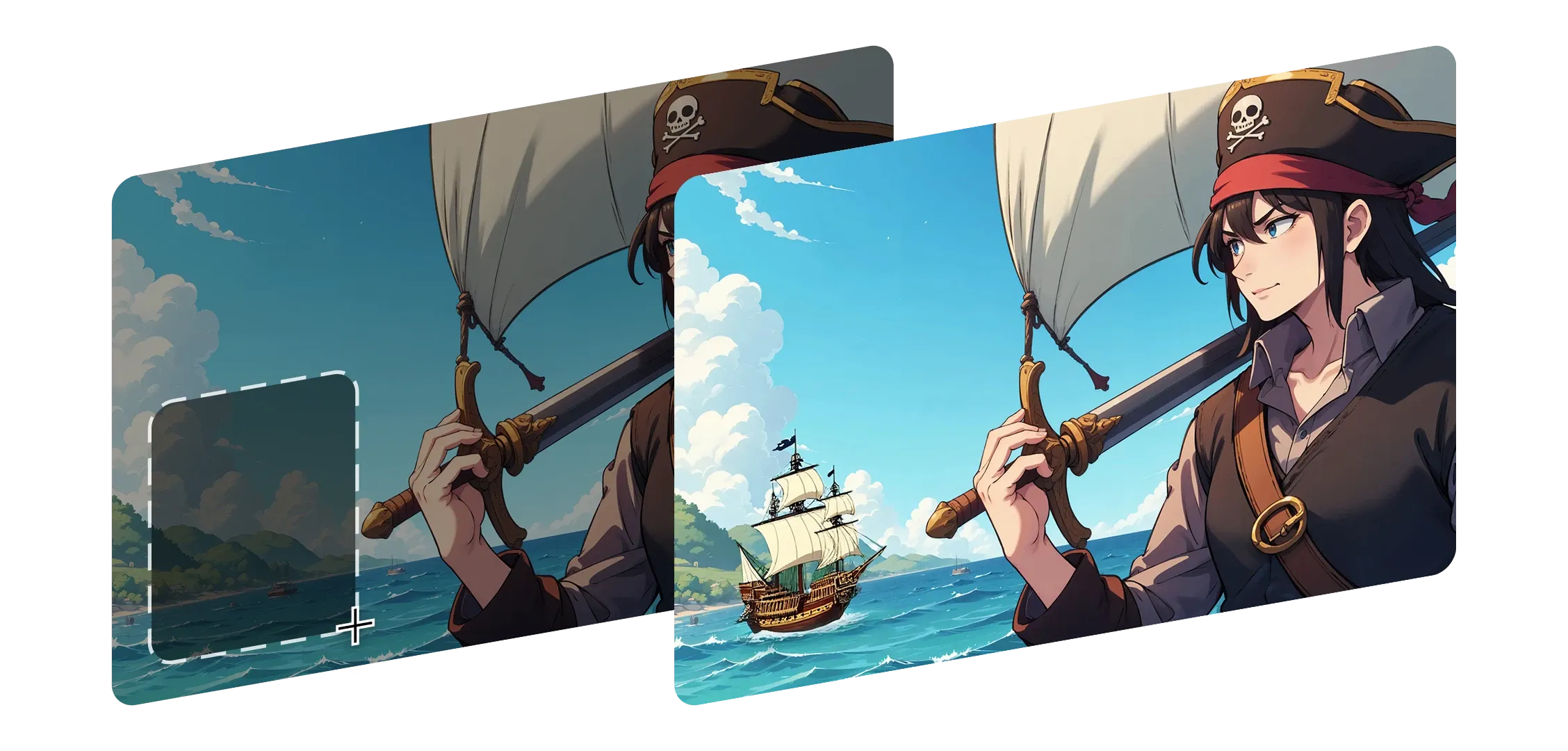
Inpainting helps you reshape any part of your image without losing its original look or feel. Just select an area, describe the change, and Morphic blends it in seamlessly.
It understands lighting, depth, and detail, keeping shadows and context intact.
Whether you're replacing a background, changing a character's expression, or adding something new, every edit feels naturally part of your frame.
From small fixes to bigger additions, Inpainting adapts to your style and intent. Morphic doesn't just patch things up, it makes every change feel purposeful and whole.
I was amazed how natural every edit looked, like the frame was always meant to be that way.
See how inpainting works inside Morphic.
Outputs from creators reshaping scenes with subtle edits.


Hover to view the input frames
Inpainting helps creators sculpt and refine their images naturally so every edit feels true to their original vision.
Try now